
For: Teacher, Class teacher, Subject teacher, Teaching assistant
Teacher
Your timetable, registers, marks, lesson plans, homework and report cards — a teacher’s week, step by step.
Your day at a glance
When you sign in you land on My Workspace: today’s lessons, the registers you still have to take, homework coming due and work waiting to be marked. Press any of them to go straight there.
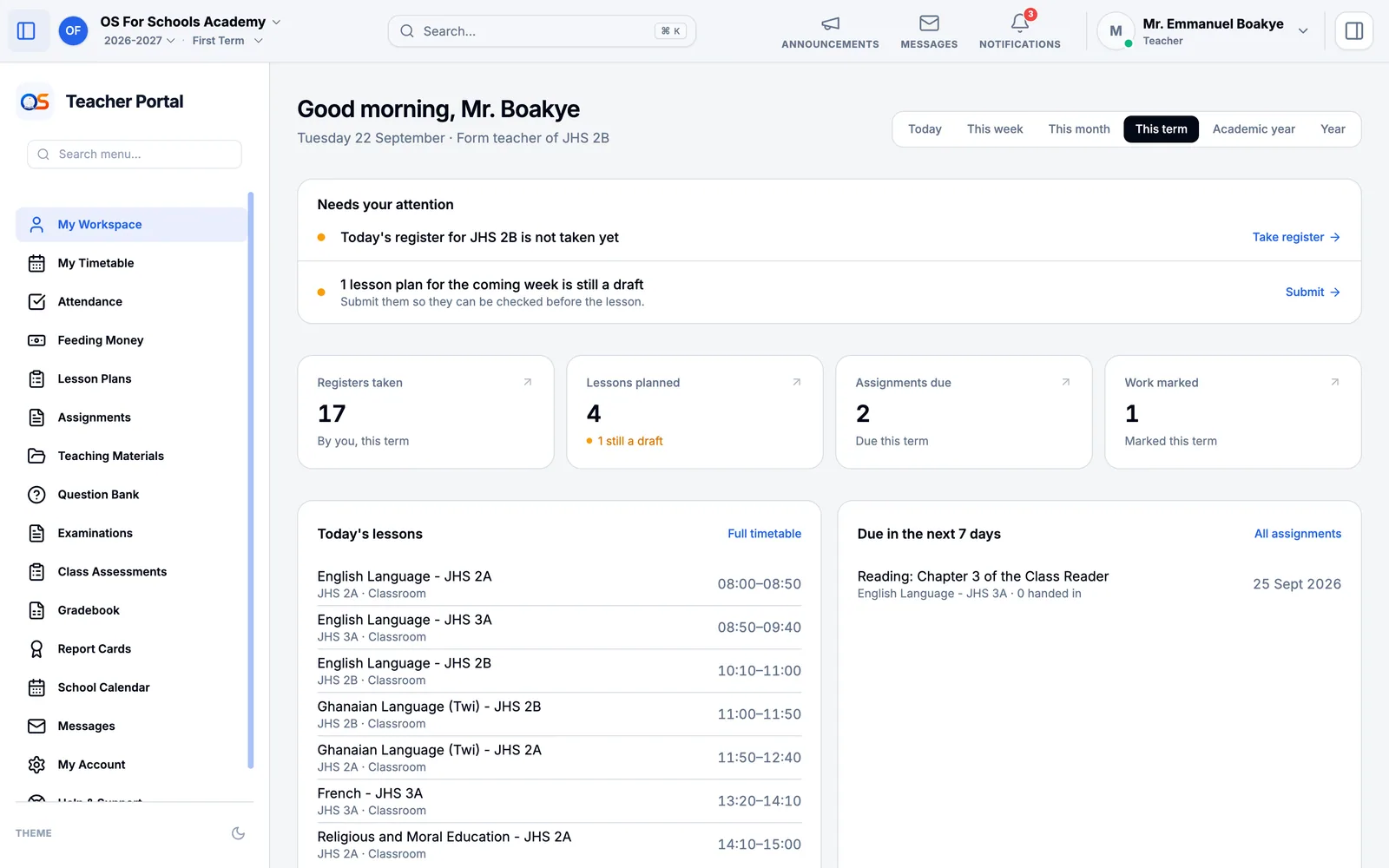
Your menu is the week in order: My Timetable, Attendance, Lesson Plans, Assignments, then marks and report cards. A class teacher also has My Form Class; a subject teacher has My Subjects.
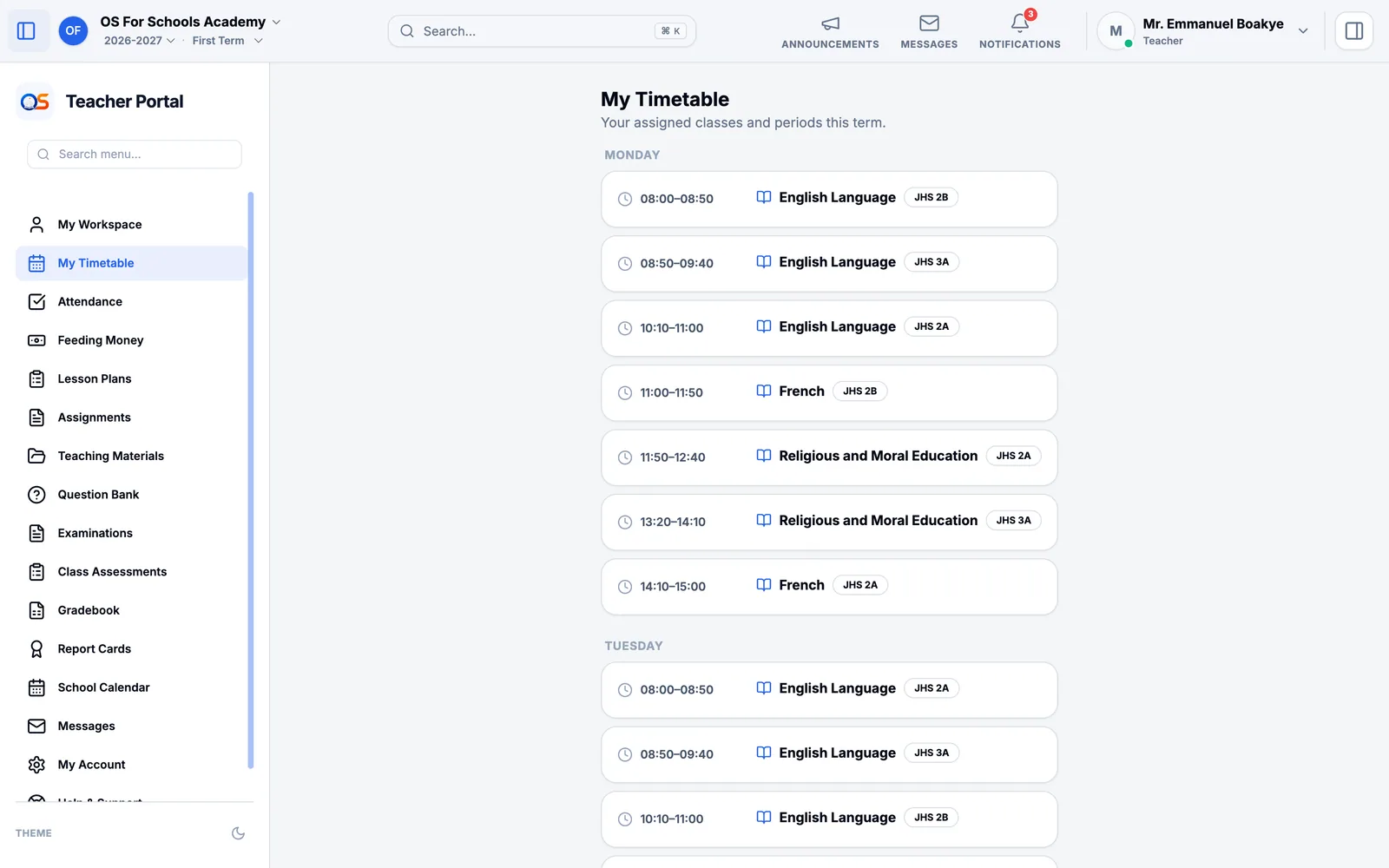
See your timetable
Open My Timetable to see each day’s lessons: which class, which subject, where and when. Switch between a week, a day or a list with the buttons at the top.
Take the register
Open Attendance from your menu, then Mark Attendance. Your own class and today’s date are already chosen.
Mark each pupil Present, Absent or Late. If most are present, press Mark All Present first, then change the few who are not.
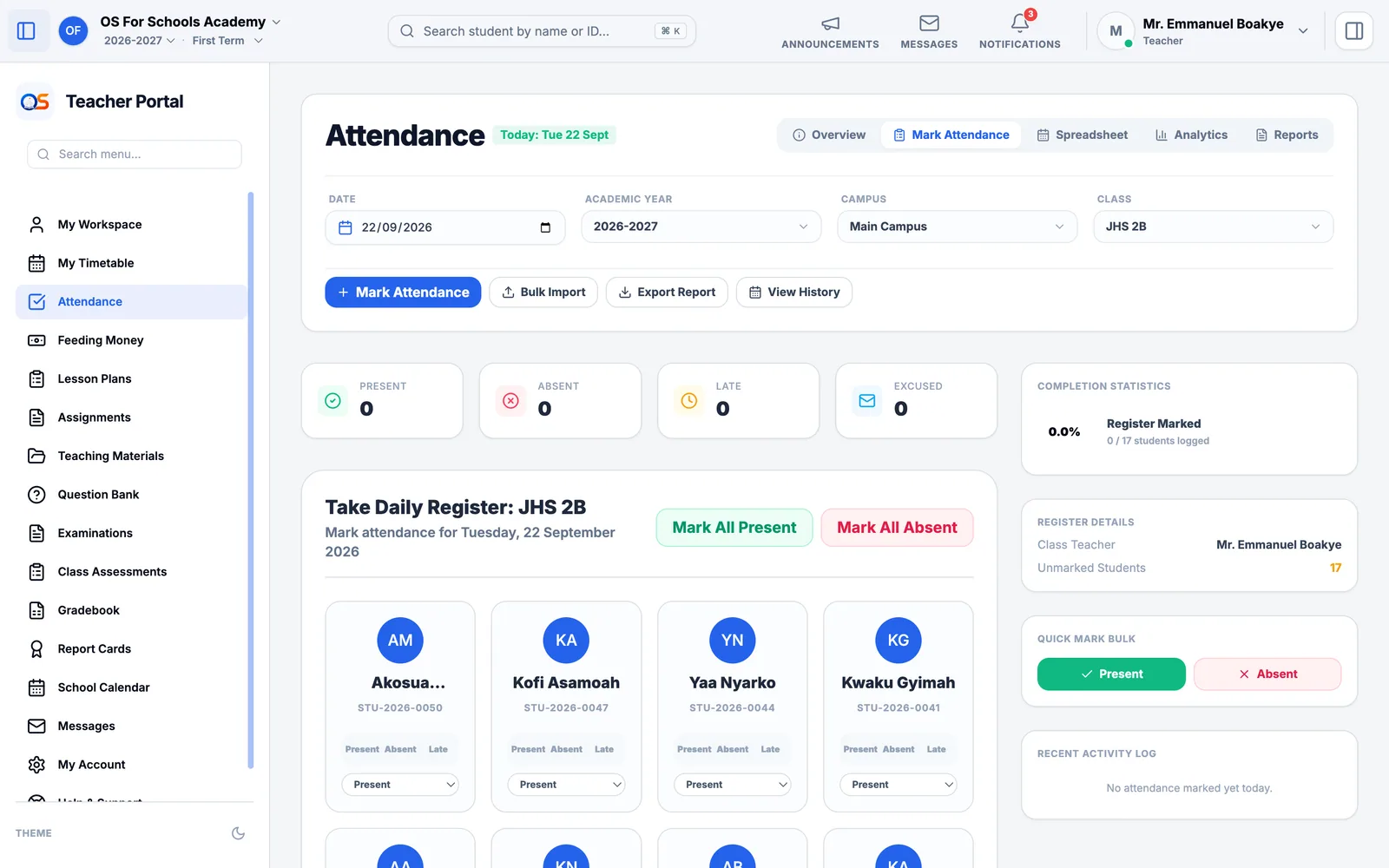
Press Submit Attendance Register. The head sees it at once, and parents see their own child’s attendance.
Enter marks
Every mark is on one page, Marks. Choose the class, the subject and the term, and you see your pupils down the side and the columns for the term across the top.
Open Marks in the menu and choose the class, the subject and the term.
The columns (for example Class Test, Homework and Exam) come from What we assess in Academic Settings, so you do not set them up here. If a column you need is missing, ask the head.
Type each pupil’s mark, or copy a column from Excel and paste it in. Type A for a pupil who was absent. There is no Save button: every mark saves itself, and the grade is worked out for you from the school’s grading scale.
If you gave the class a quiz in the app and the app marked it, it can fill a column for you. Those marks show blue until you confirm them.
Plan your lessons
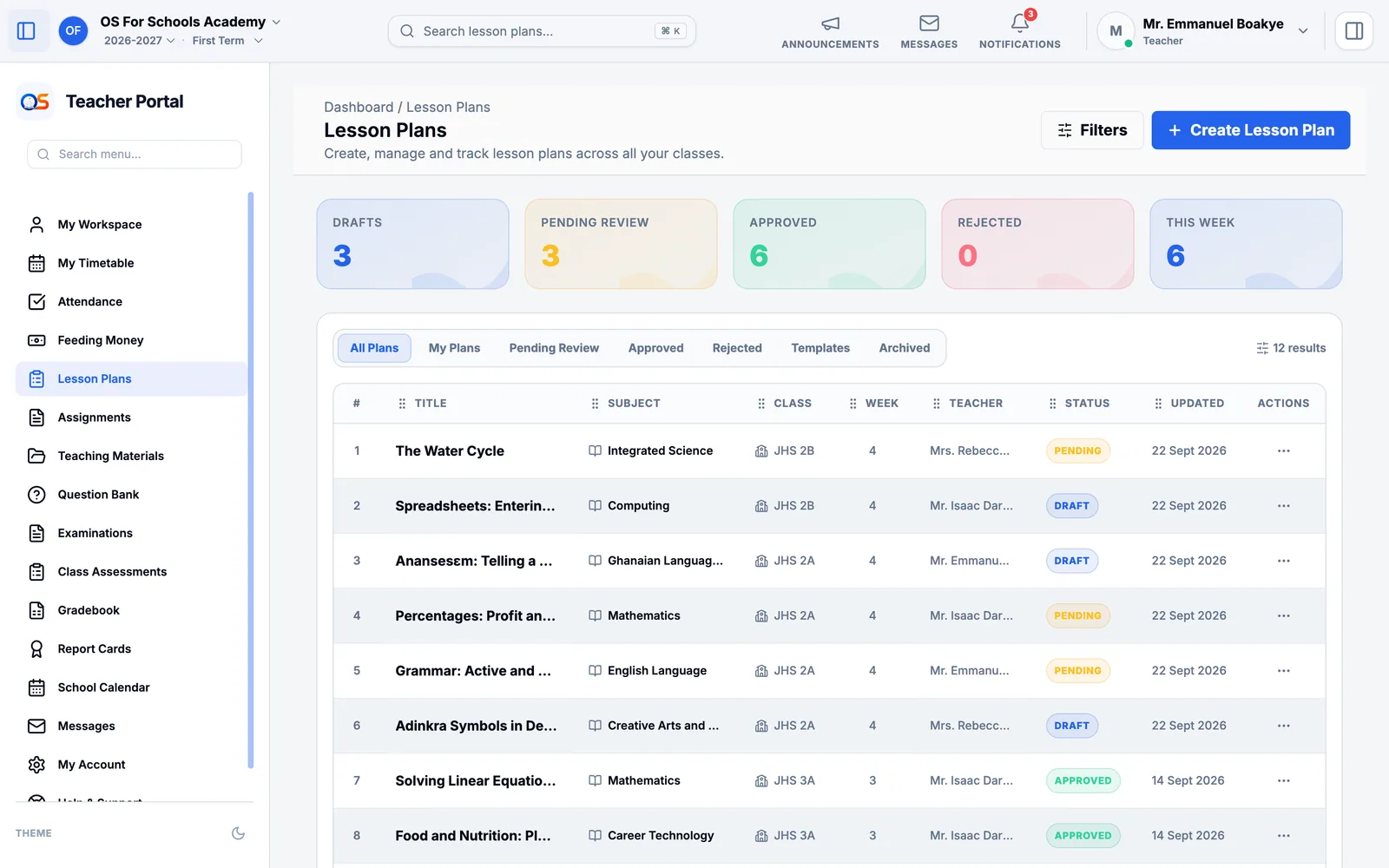
Open Lesson Plans and choose Create Lesson Plan. Write the topic, what pupils should learn, and how you will teach it. Save it as a draft while you work, then submit it for review: the head or assistant head approves it or sends it back with a comment.
Set and mark homework
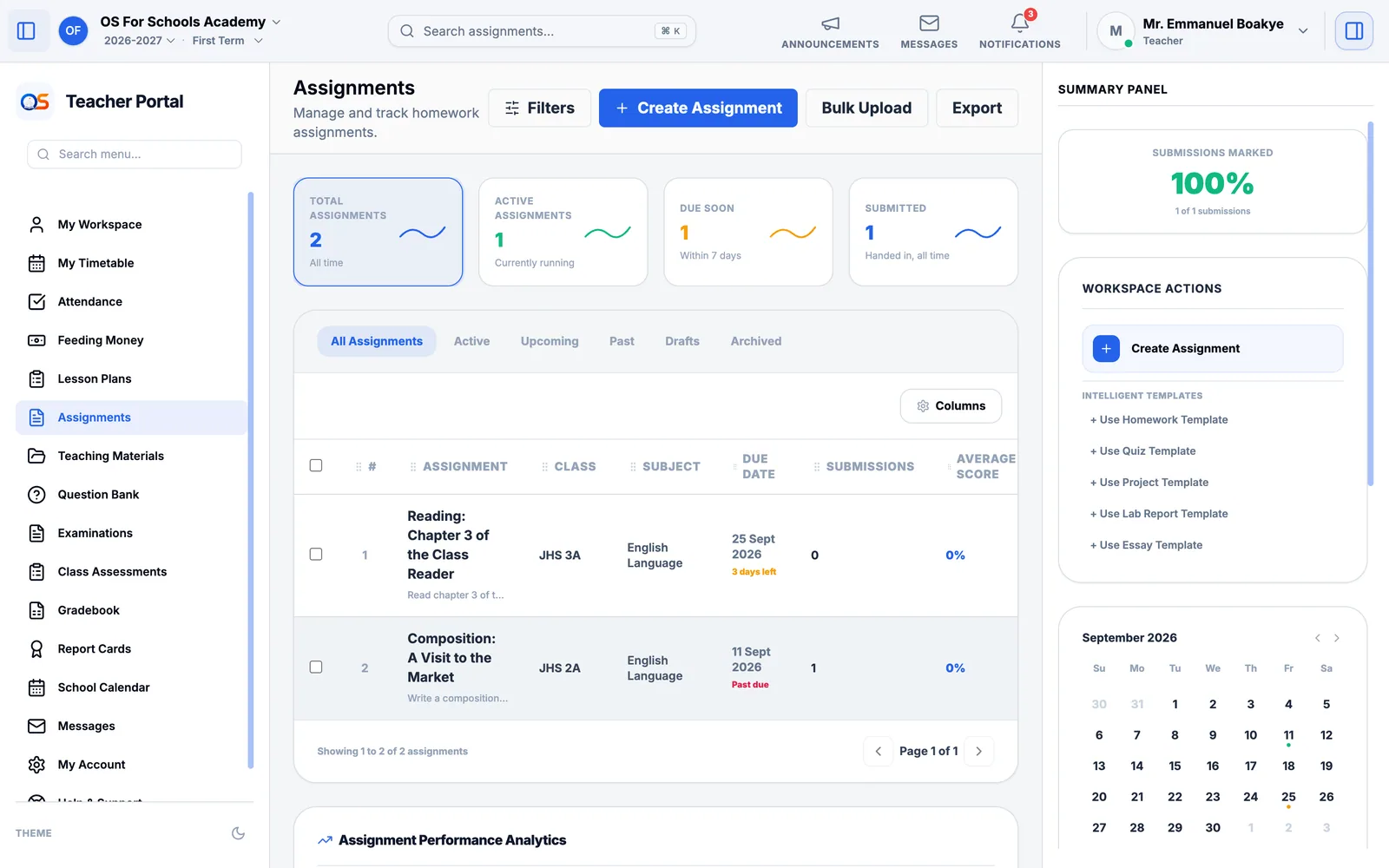
Open Assignments and choose Create Assignment: the class, what to do, and when it is due. Pupils see it in their own Homework & Assignments, and so do their parents. When work comes in, open the assignment to mark each piece and give feedback.
Report cards: write your remarks
Every pupil’s report card makes itself from the marks you type and the register, and goes to their parents by itself on the last day of term, once its marks are all in. Your part is the marks — a remark is optional.
Open Report Cards and choose your class. Going to parents says when the cards go out and which pupils are still waiting for a mark, and which mark.
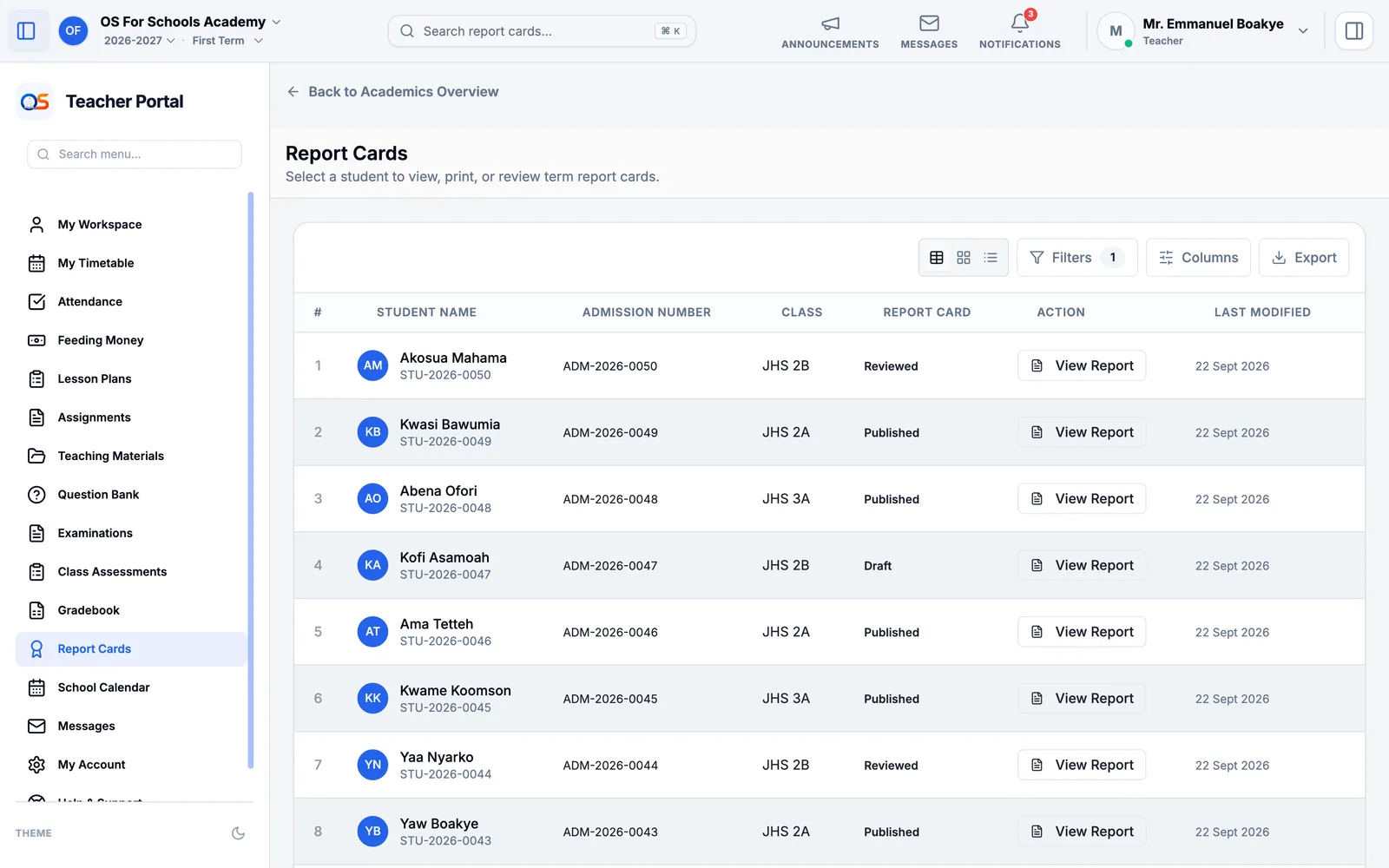
Type any missing mark on the Marks page — or A for a pupil who was absent. The card goes out as soon as its marks are in.
To add a remark, open a pupil’s card, type it in Class teacher’s remark and press Save remarks. It goes out on the card.
Collect feeding money
If your school collects feeding money in class each day, open Feeding Money, choose your class and today’s date, and record what each pupil paid. The bursar sees the day’s total.
Write to a parent
Open Messages and press New message.
Under Student, find the pupil by name, then choose the Parent. The parent is told in the app.
Choose a Category, write a Subject — say, “Missed homework” — and your Message, then press Send.
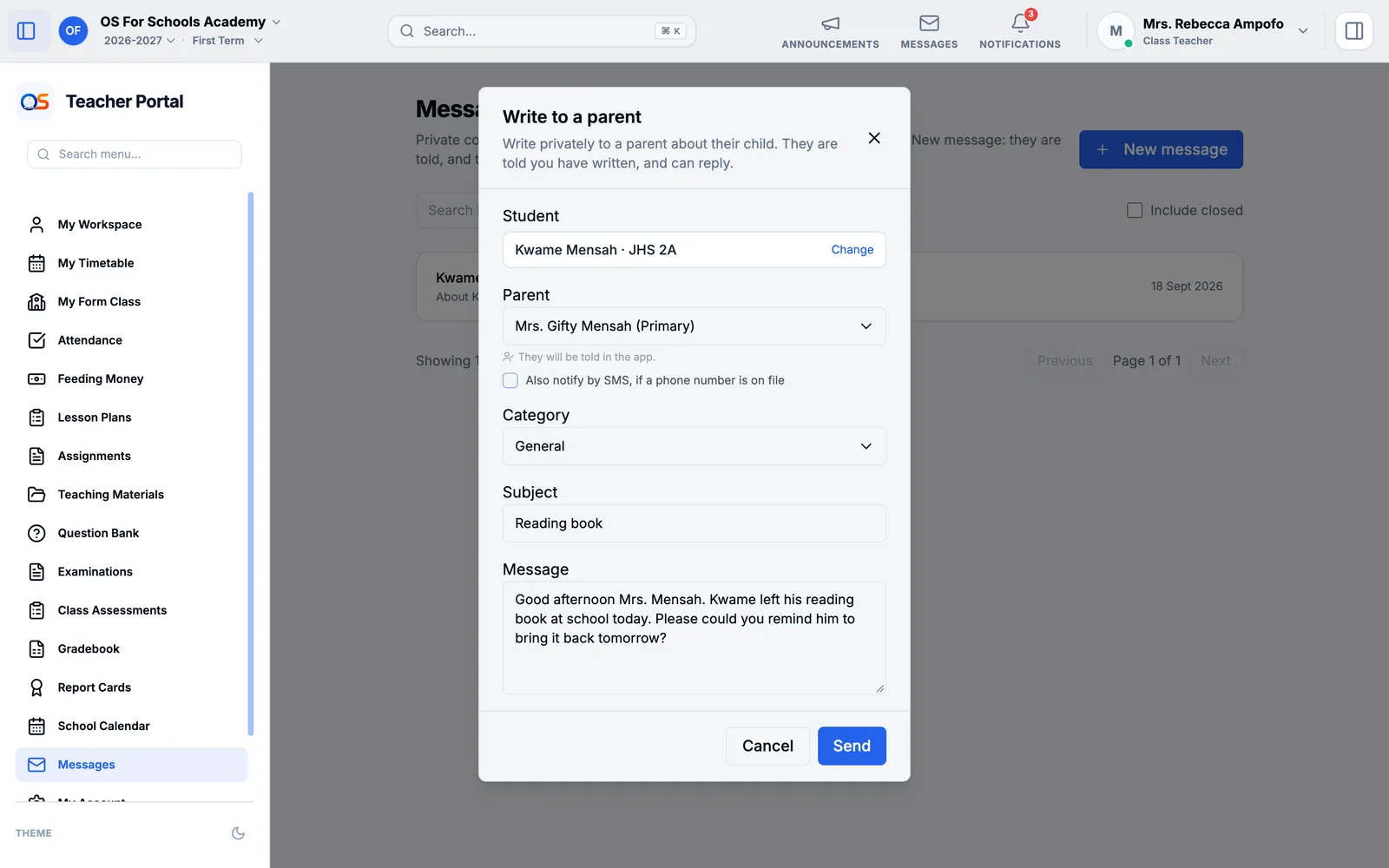
The parent is told at once, and their reply appears in the same conversation in Messages.
Class teachers: your form class
My Form Class gathers everything about the class you look after: its pupils, today’s attendance, and pupils who may need extra support.